Images for the web.Less tool switching.
Crop an image, change its pixel dimensions, reduce the file size or remove the background. Glebrio puts these everyday image tasks for websites and online shops in one place. It’s free to use in your browser, with no account required.
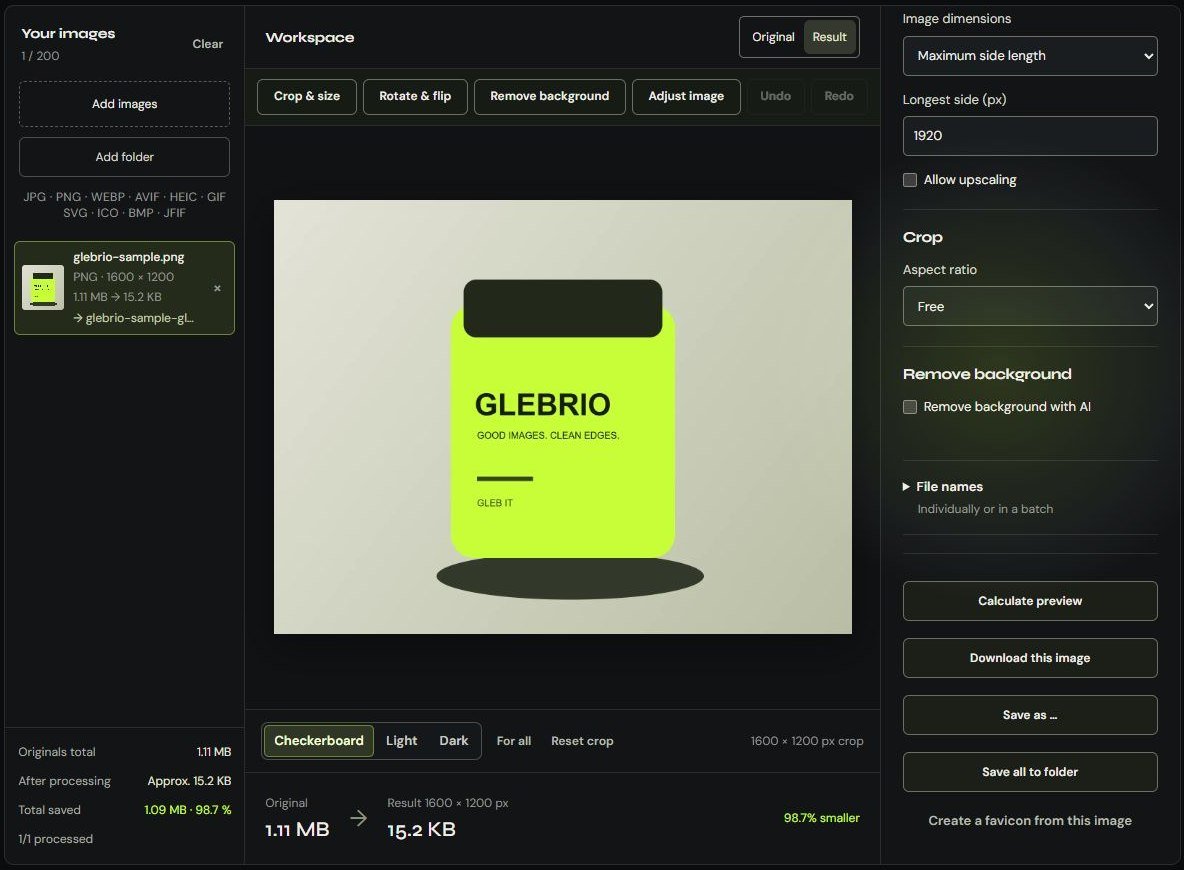
From photo to web image.
Is your photo ready but still too large for a banner? This example shows an actual Glebrio export. Choose a crop, set the width and height, then download the finished WebP file.
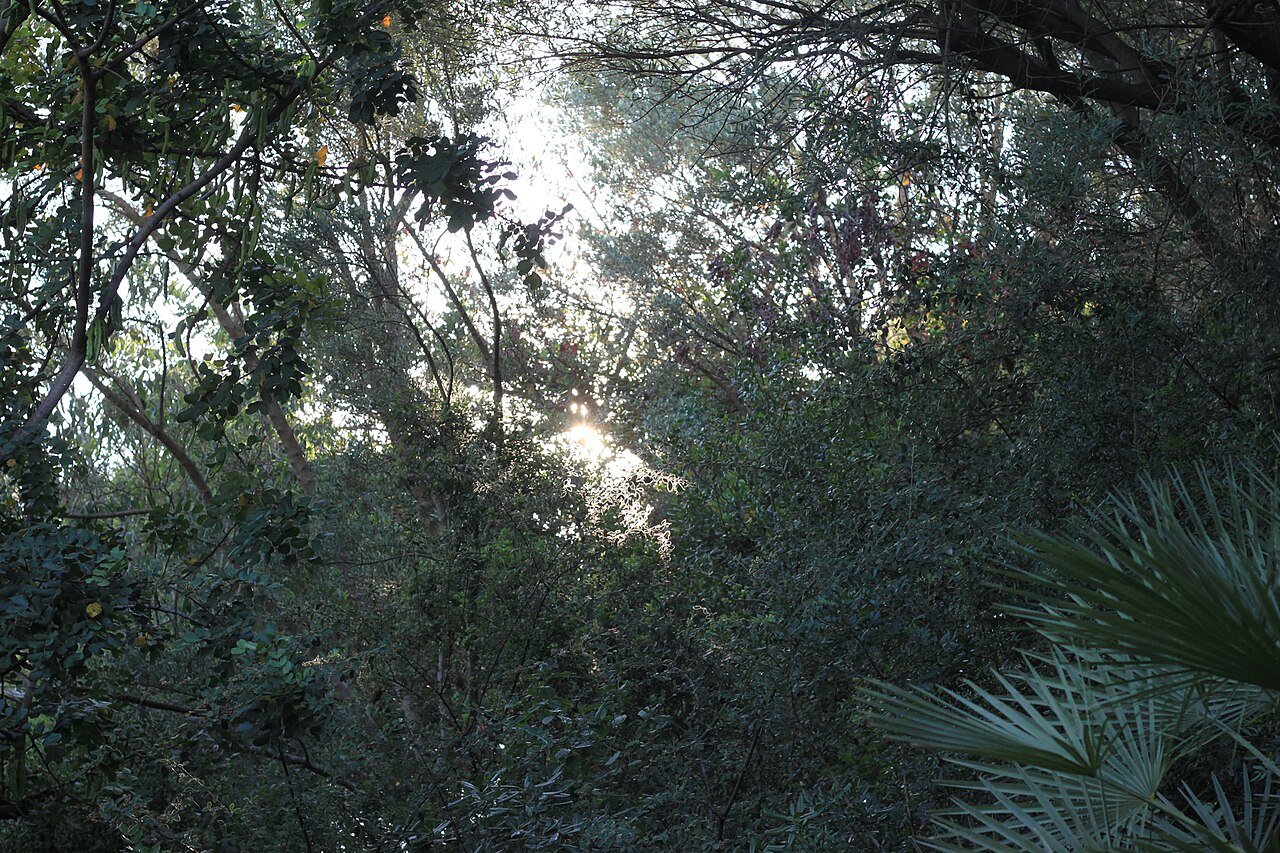
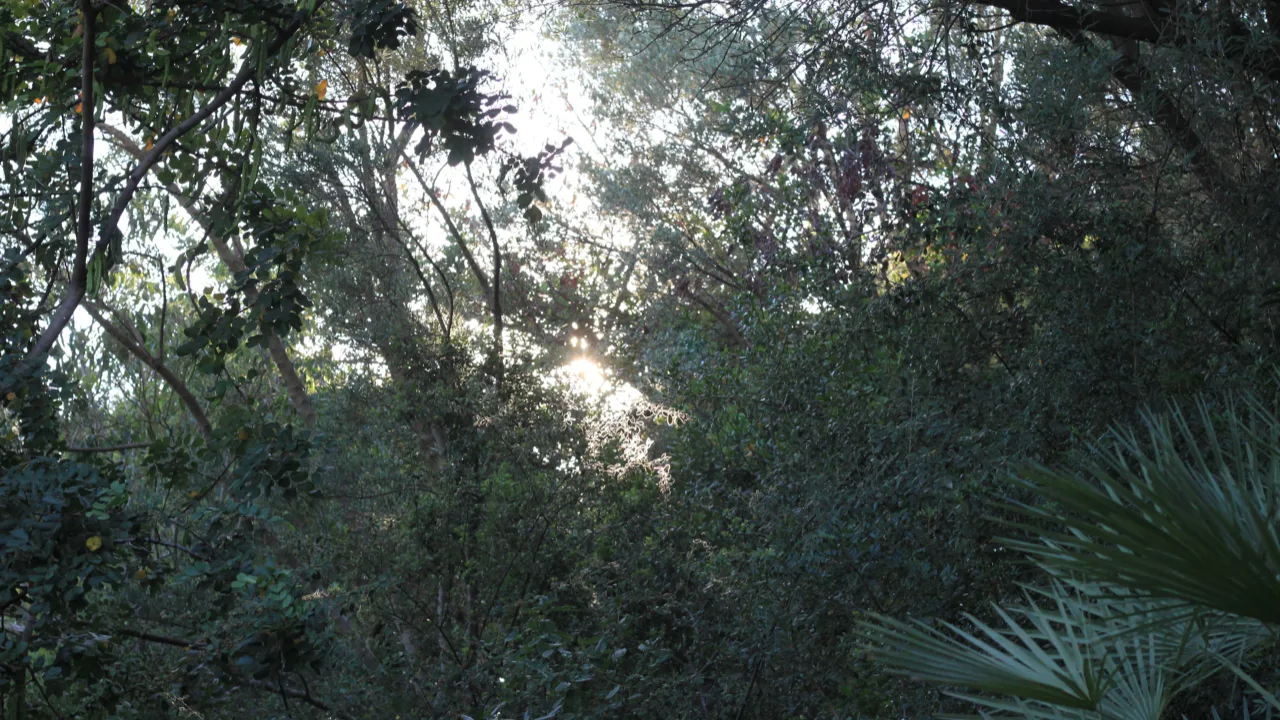
The difference comes from cropping, resizing and lossy WebP encoding together. This is one example from Glebrio 0.12.0. Savings and quality vary. Check the result at the size you intend to use.
- 1. Open the original
Download the ZIP with the original photo, extract it and open the JPG in Glebrio using “Add images” (Bilder hinzufügen). Processing happens locally in your browser, and the original stays on your device.
- 2. Set the crop and dimensions
Under “Image dimensions” (Bildgröße), select “Exact pixel dimensions” (Exakte Pixelmaße). Set “Width (px)” to 1280 and “Height (px)” to 720. “Crop — fill the frame” (Zuschneiden) fills the 16:9 frame. You can move the crop frame. For this example, keep it centred and leave “Allow upscaling” (Vergrößern erlauben) off.
- 3. Compare and save
Choose WebP and select “Quality (%)” (Qualität in %). Set “Quality” to 82 and enable “Apply additional compression” (Zusätzlich komprimieren). Select “Calculate preview”, then compare “Original” and “Result” (Ergebnis), then check the calculated file size. Choose “Download this image” (Dieses Bild herunterladen) to save the image directly without a ZIP.
Demo photo: SpessiG / Wikimedia Commons, CC0 1.0. The crop, dimensions and format were changed using Glebrio. This website serves the image previews.
Try with your own imageWatch a short demo from an earlier version
One image. Or a whole batch.
For product images, banners and photos that are ready for the final adjustments. Prepare up to 200 images in one batch. Use “All images” (Alle Bilder) for shared settings and “This image only” (Nur dieses Bild) for the selected image. Save frequently used output settings as templates. The quick tools give you direct access to cropping, rotating, flipping, image adjustments and background removal. You can undo and redo edits.
The “PDF” tool combines edited images into a document. The “SVG” tool cleans up static vector files. Both tools process your files locally on your device.
In browser version 0.13.0, “Natural enhancement” (Natürlich verbessern) can adjust photo brightness and contrast and apply light sharpening. Set the strength from 0 to 100%. You can still compare with the original and undo changes. This feature does not apply to transparent images, SVGs or ICO files.
Select images
Drag files into the app or select them from your device. HEIC files are supported.
Set the crop and dimensions
Crop freely or by aspect ratio, then set a maximum side length or exact pixel dimensions. Use Crop or Fit to reach the target without distortion. For transparent PNGs, “Crop to content” (Auf Inhalt zuschneiden) removes empty space around the edges, which is handy for logos with extra padding.
Compare and save
Compare the original with the result. The displayed file size comes from the actual export. Choose filenames for individual images or for the whole batch if you need to. Download a single image on its own or the batch as a ZIP.
- JPG
- WebP
- AVIF
- PNG
You choose the format and quality. PNG remains lossless. JPG and AVIF use lossy compression. Whether the file gets smaller depends on the image and settings.
Your images stay with you.
The app processes your images locally in your browser’s memory.
Glebrio does not upload your images, filenames or results to a server. The standalone app uses no accounts, analytics or cookies and does not keep a permanent session in your browser.
Custom templates you choose to save are the exception. Their settings, template name and any naming pattern stay in this browser. Images and results are not saved. You can delete custom templates in the template manager or by clearing this website’s data in your browser. Avoid including personal information in names and naming patterns where possible.
The app’s files are loaded from this website. This can generate standard hosting access data. For details about this website, see the privacy notice.
Optional: Remove backgrounds with AI
The optional background remover needs a model of around 176 MB and considerably more memory. It loads from the same host when you actively generate a preview or start a ZIP export with AI enabled. Ticking the box alone does not start a download.
Your images are processed without uploading them. The output is a transparent PNG. This feature may be unsuitable for devices with limited memory.
Good to know.
Which browser do I need?
Glebrio needs a modern browser with WebAssembly and the relevant image and worker capabilities. Older browsers are unsupported. Large images and optional AI processing use a lot of memory. Even below the 200-image limit, some batches may exceed what your device can handle.
Does your PNG logo have too much transparent padding?
When you enlarge a logo, its invisible padding grows too. Use “Crop to content” (Auf Inhalt zuschneiden) on a transparent PNG to set the frame around the visible content, including faint shadows. You can add padding, adjust the crop manually or crop all eligible PNGs in the batch.
This feature works only with transparent PNGs and uses no AI. It leaves white borders, opaque PNGs and other formats alone. Fully transparent PNGs stay unchanged. The output is a new PNG, and your original stays intact. With fixed target dimensions, Glebrio expands the crop frame to fit. If it cannot do so without losing content, it explains the alternatives, “Fit — add borders” (Einpassen) or a maximum side length.
Is the image too dark or are the colours too strong?
Under “More image adjustments” (Weitere Bildanpassungen), change brightness and saturation from 0 to 200%. The neutral value is 100%. These settings apply to the selected image, even when “All images” (Alle Bilder) is selected for export settings.
“Reset adjustments” (Anpassungen zurücksetzen) sets brightness, saturation and contrast to 100%, details to 0 and returns colour inversion and logo colour to their original states. It also switches off “Natural enhancement” (Natürlich verbessern) and resets its strength to 30%. The crop and filenames stay in place. Compare the original with the calculated preview before downloading.
How do I name my exported files?
Open “File names” (Dateinamen) to set a base name for one image or use a shared name with client, campaign and date information. An individual filename takes priority. You can add a sequence number, choose its starting value and set the number of digits. Numbers follow the order of the list. Glebrio adds the correct extension, for example 001-client-campaign-2026-10.webp. Single downloads and ZIP exports use the same filenames. Only exported files are named, and your originals stay unchanged.
Can I return to my project later?
Glebrio does not save a full project file or session. Reloading or closing the page clears loaded images, individual edits and calculated results, so download finished images first. Custom templates you save remain in this browser as reusable output settings, without images or results. Editing leaves original files intact. If your browser offers “Save as…”, choosing an existing file can replace it. To keep the original, choose a new name or location.
What happens to metadata and animations?
Exporting to JPG, PNG, WebP or AVIF re-encodes the image and removes metadata. The separate SVG optimisation tool preserves existing metadata, IDs and text spacing. Animations and HEIC containers are processed as a single image. HDR and the original colour profile may not be preserved. Keep the original if you need this information.
Do I need to install anything?
Open the app in your browser without installing anything or signing in. An internet connection is required to load the app and its files. Full offline use is not guaranteed.
Can I edit images that are 5,000 or 7,000 pixels across?
Yes, if the file is within the web app’s limits. A batch can contain up to 200 images, with up to 100 MiB per file, 100 million pixels per input image and 30,000 pixels on either input side. Output is limited to 40 million pixels and 10,000 pixels per side. For a ZIP export, the calculated image files must total no more than 512 MiB before packing. Your device’s memory and processing time can limit the batch further.
A 7,000 × 7,000-pixel image has 49 million pixels, so it fits the input limit. You will need to resize it to 40 million pixels or fewer for export. Large input images still need a lot of memory. Choose suitable target dimensions and check the actual calculated file size.
Can I convert HEIC or camera RAW files?
The web app reads JPG/JPEG including JFIF/JPE, PNG, WebP, AVIF, HEIC/HEIF, GIF, BMP, ICO and SVG. SVGs must be static and self-contained, up to 10 MiB per SVG, with no scripts, animations or external references. Export formats are JPG, WebP, AVIF and PNG. HEIC support is useful for phone photos. Camera RAW formats are separate.
Camera RAW formats such as CR2, NEF, ARW and DNG are currently unsupported in the browser and Windows editions. Process these files in a suitable specialist tool first, then export to a supported format. The Windows edition also reads BMP and TIFF.
Can I aim for a specific file size in KB?
For JPG, WebP and AVIF, choose “Target size (KB)” (Zielgröße in KB) under “Compression” (Kompression). Glebrio tries several quality levels to find a suitable file. Check the preview and calculated file size afterwards. If the target is exceeded, the app tells you and the exported file can still be larger.
Smaller dimensions or a different format often help. The KB mode does not apply to PNG or AI background removal.
Can I turn my logo into a favicon?
Yes. Open “Favicon” in the app or use “Create a favicon from this image” (Favicon aus diesem Bild erstellen) on a loaded image. Pick a profile for WordPress or your own website, check the small previews and download the ZIP with the appropriate files and instructions.
Processing stays on your device. You can use an SVG as a rasterised source in the image editor and favicon tool. Use the separate “SVG” area to clean up and download static SVG files in SVG format.
Can I make a PDF from my images?
Yes. Add images in the image editor and switch to “PDF”. Crops, pixel dimensions and individual edits carry over. Reorder pages by dragging or using the arrows. Choose A4, A5 or a size that matches the image, then set orientation, margins and JPEG quality. After generation, check the rendered page preview and download the PDF.
One image per page, up to 200 pages and 512 MiB. Transparent areas are filled with white. “Fit to image” (Passend zum Bild) uses 144 dpi plus the margin. Pages are raster images, with no text recognition or PDF editing. Processing stays on your device.
What does SVG optimisation change?
The “SVG” area removes comments and unnecessary outer XML wrapping. It keeps geometry, IDs, metadata and text spacing intact. You can compare the original and result, check file sizes and save individual SVGs or a batch as a ZIP. If the result is no smaller, Glebrio keeps the original bytes.
Static, self-contained SVGs only, up to 10 MiB each. Files with scripts, animations or external references are rejected. A batch can contain up to 200 SVGs and 100 MB in total. Your original files stay intact.
When should I use a specialist tool?
Use one for detailed retouching, layer-based compositing or RAW processing. Glebrio focuses on the repeated work that finished images still need, such as cropping, resizing, choosing a format, compressing and exporting.
You can adjust brightness and saturation or remove a background. For detailed colour work or a more elaborate visual treatment, use a specialist tool. Once the image is ready, Glebrio can prepare it for the web.
What’s your next image?
Need help with your website? Get in touch.